Ever felt like you’re spending more time managing your productivity app than actually getting things done? Most people fail at task management because they force their brain to follow a tool’s logic, rather than the other way around.
After years of “tool-hopping,” I spent 2025 perfecting a Todoist ecosystem that does the heavy lifting for me. By leveraging advanced filters and a “capture-anywhere” workflow, I’ve built a system that handles atomic tasks with zero friction—whether I’m mid-workout or deep in a work sprint.
In this post, I’m breaking down the exact configuration I use to keep my mind clear and my focus sharp. While this setup is tailored to my life, you’ll find specific, “copy-pasteable” filtering logic that you can plug into your own workflow today.
Ready to stop remembering and start executing? Here is how I hacked Todoist.
The “Zero-Inbox” Architecture: Speed Over Maintenance
My philosophy is simple: friction is the enemy of productivity. If a system requires a “weekly review” just to clean up a messy inbox, it’s already failing you. That’s why I’ve gutted the traditional Inbox concept entirely.
I run my entire life through just two high-level buckets: Personal and Work. That’s it. No complex hierarchies, no folder fatigue.
The magic happens at the moment of creation. Instead of dumping a task and sorting it later, I use Todoist’s natural language shortcuts to categorize on the fly. By the time I hit “Enter,” the task is already fully contextualized:
- #Project: Immediate destination (
#Personalor#Work). - @Tag: Instant context (e.g.,
@deepworkor@errands).
By assigning a date today, tomorrow, or even a generic weekend during the initial capture, I’ve effectively automated my future schedule. If a task doesn’t have a hard deadline, it drops into my Backlog Filter (by simply specifying no due date at all), waiting for the moment I’m ready to tackle it.
The result? I’ve eliminated the “sorting phase” that kills most people’s momentum. Once a task is entered, I don’t just “store” it, I forget it. I trust the system to resurface it exactly when I need to see it, leaving my brain free to focus on the work itself.
Task planning
For me, task planning is very simple and I usually do it either the evening before or as first thing in the morning.
I usually first open the Overdue view:
OVERDUE search filter: (overdue)… and I reschedule all overdue activities to today. It’s a bulk rescheduling, without yet thinking about priorities or whether something can still be pushed forward.
At this point I’ll go to the Today view:
TODAY search filter: ((today) | Deadline: Today)… and I begin the actual planning, which consists of several steps:
- Mark as completed any tasks that I may have forgotten to complete the day before (this happens more often than expected);
- Set the activities I absolutely want to complete during the day as maximum priority (p1);
- Set as priority p2 the activities I would like to complete during the day, but it’s not essential that I finish them;
- Set as priority p3 the activities I would like to complete within the week;
- I’m moving activities that I can complete later to a future date;
- I remove the date and insert the @follow tag for activities to track;
- I remove the date for activities that I want to end up in the activity backlog (which therefore don’t have a specific deadline);
- I remove the date and add the @cold tag for tasks that I want to end up in the “cold backlog” – those zero-priority tasks that I’ll most likely delete after some time.
Finally, I look at the Follow view
FOLLOW search filter: @follow… to see all the activities for which I need external input to complete them. If I want to send reminders, then I remove the @follow tag and they automatically show up in my Today view.
From time to time, I also open the Backlog views.
BACKLOG search filter: no due date & (#Personal | #WORK) & !(@follow | @casa | @cold | @filler | @visit)and Cold backlog
COLD BACKLOG search filter: @cold… to understand, if I have time, if there are any activities I can complete, and in that case I schedule them for today.
So I find myself in the Today view, at the end of this planning process, with all the tasks to complete during the day with priority set for the most important ones.
I almost forgot, one last very important thing: all my views have tasks grouped by project, so that work tasks are separated from personal ones.
Special filters
In addition to the views mentioned above, I have some special views: first, I have a view with tasks scheduled for tomorrow, in case I have time and want to get ahead. This view is obviously called Tomorrow:
TOMORROW search filter: ((Tomorrow) | (deadline: tomorrow))I also have a view (Later) that allows me to see all the tasks scheduled for later.
LATER search filter: due after:tomorrow | deadline after: tomorrowFinally, two very useful special views. The first one allows me to understand where I can perform a task: some tasks are tied to being at home, at the office, or on the go.
IN A SPECIFIC PLACE search filter: @errands, @office, @home, @onlineUnfortunately, I’m not very rigorous in using this categorization, and in the end the tag I use most is @errands to indicate a task I can do when I’m out and about (like the task “buy X at store Y”).
Finally, I also use tags to specify if I need to complete certain tasks with a specific person: if I need to ask my manager about something, those tasks will be tagged with @manager, for a colleague X with @colleagueX, etc. So when I’m talking to someone, I open Todoist, go to the With Someone view where I’ve grouped tasks by tags, and check what I can complete.
WITH SOMEONE search filter: @ContactName1, @BossName1, @ColleagueName1, @Friend1, @Friend2, @Colleague2 This approach is obviously far from perfect, because as you can see from the filter above, it forces me to modify the filter every time I add a person, but I only do this for people I interact with most and it works very well for me.
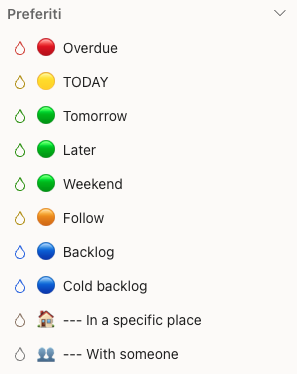
Quindi, alla fine, ecco la mia barra dei preferiti con i filtri che utilizzo
Bonus: special projects (aka lists)
Actually, I wasn’t entirely honest with you at the beginning when I told you that I only use two projects, #work and #personal.
This is true if you consider tasks, which can only exist in these two projects. However, I have two others that I don’t use as projects but as lists.
The first is Birthdays: inside I have recurring tasks (annual, obviously), with the birthdays of people I care about. It’s very convenient for me to see a task like “wish X a happy birthday” in the task list, so I don’t forget (which could happen if I put birthdays in a calendar instead).
The second is Shopping list: in this case it’s a grocery list, which I find convenient to keep in Todoist because I find it very easy to add things to buy when they come to mind.
Your Turn: Build a System, Not Just a List
Mastering Todoist isn’t about using every feature available; it’s about ruthlessly automating the mundane so you can focus on what actually moves the needle. By collapsing your inbox and categorizing at the source, you’re not just managing tasks, you’re reclaiming your mental bandwidth.
In 2026, your tools should serve you, not the other way around. Start by auditing your current workflow: where is the friction? Try implementing these two-project structures and shortcut-heavy captures for one week. You’ll be surprised at how much quieter your brain becomes when it knows every task is exactly where it belongs.
What does your “perfect” filter look like? Drop a comment below or share your favorite Todoist shortcut, I’m always looking to refine the system even further.